
Most churches run VoxLive from a phone or a laptop near the pulpit, and that works. But if your church already livestreams — to YouTube, Facebook, or anywhere else — there is a simpler way, and it is the way we run it at our own church: connect the livestream itself. You set it up once, in about five minutes. From then on, the moment your stream goes live, captions and translation go live with it. When the stream ends, they end. Nobody starts anything, nobody stops anything, and nobody has to remember VoxLive exists on the morning of a service.
01 — What it isYour stream in, captions out.
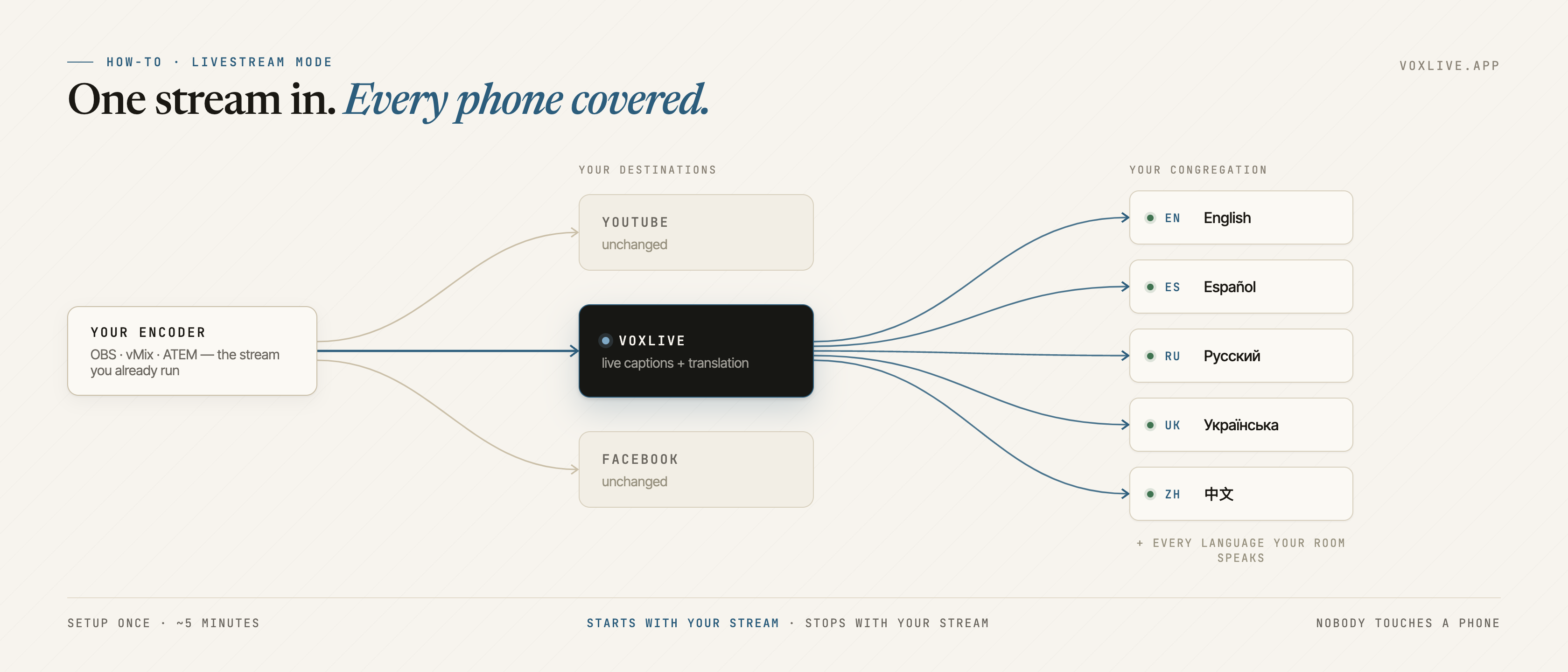
Livestream mode means VoxLive listens to the same broadcast signal you already produce. Your stream to YouTube or Facebook continues exactly as it does today — VoxLive is just one more place that signal goes. From that audio, VoxLive produces live captions and translation on the listener page your congregation already uses: scan the QR code, pick a language, read or listen.
The practical difference from phone mode is who has to think about it. A phone at the pulpit needs someone to place it, unlock it, start it, and keep it awake. A livestream connection needs no one — your stream starting is the start button.
Your stream starting is the start button. Your stream ending is the stop button.
02 — The recommended setupStream to VoxLive, like one more platform.
This is the path we recommend for nearly everyone, because it works with whatever you stream with today — OBS, vMix, an ATEM, another hardware encoder, or a streaming platform that can add destinations.
- Log in and open your room.voxlive.app → Studio. Free account is fine — livestream mode works on every plan.
- Choose "Connect a livestream."When VoxLive asks where the audio comes from, pick the livestream card.
- Click "Set up my stream key."On the "Stream to VoxLive" tab. VoxLive gives you two things to copy: a Server URL and a Stream key — the same pair every streaming platform hands you.
- Add VoxLive as a destination in your encoder.Exactly like you added YouTube. In OBS: Settings → Stream → Service "Custom…" → paste the Server and Stream key. Most encoders and streaming platforms can send to several destinations at once, so your existing stream is untouched.
- Go live like you always do.Captions start seconds after your stream comes up, and stop by themselves when you stop streaming. That's the whole routine, every week, forever.
03 — The other wayPull from a stream you already have.
Some churches can't add a destination — the encoder is locked down, or the stream is managed by a provider. For those, the same card has a second tab: "Pull from my stream." Instead of sending your stream to VoxLive, you give VoxLive a link to come get it.
The link you need is your provider's playback link — sometimes called a pull link — not the ingest URL you stream to. Paste it, save, and you're done. From then on it behaves the same as the recommended path: VoxLive quietly waits, and whenever your stream goes live — today, or next Sunday — captions start on their own.
04 — Common questionsThe three things everyone asks.
Does this change our existing stream? No. VoxLive only listens. Your YouTube or Facebook stream looks identical to your viewers — same quality, same everything.
Do we still need a phone at the front? No. That's the point. The listener page keeps working the same way for your congregation; only the audio source changes.
What does it cost? Nothing extra. Livestream mode is part of every VoxLive plan, including free — your normal monthly hours apply, same as any other way of broadcasting.
05 — MultistreamOne stream in, everywhere out.
Livestream mode is your stream coming in to VoxLive. The reverse is live too: Multistream. Send your service to VoxLive once, and VoxLive sends it on to YouTube, Facebook, and everywhere else you stream — one signal in, everything out, with captions and translation along the way. It's included with every VoxLive plan — no add-on — so if you're paying separately for a restreaming tool today, you don't need to. The step-by-step is in the Multistream guide.
If you want to see livestream mode in your own room first: start free — the trial covers a real service — or run one full Sunday on the $5 First Sunday Pass and decide from your congregation's experience.
Your stream is the start button.
Connect it once on a weekday, and on service day nobody in the booth has to remember the product exists. The free tier covers a real test.