
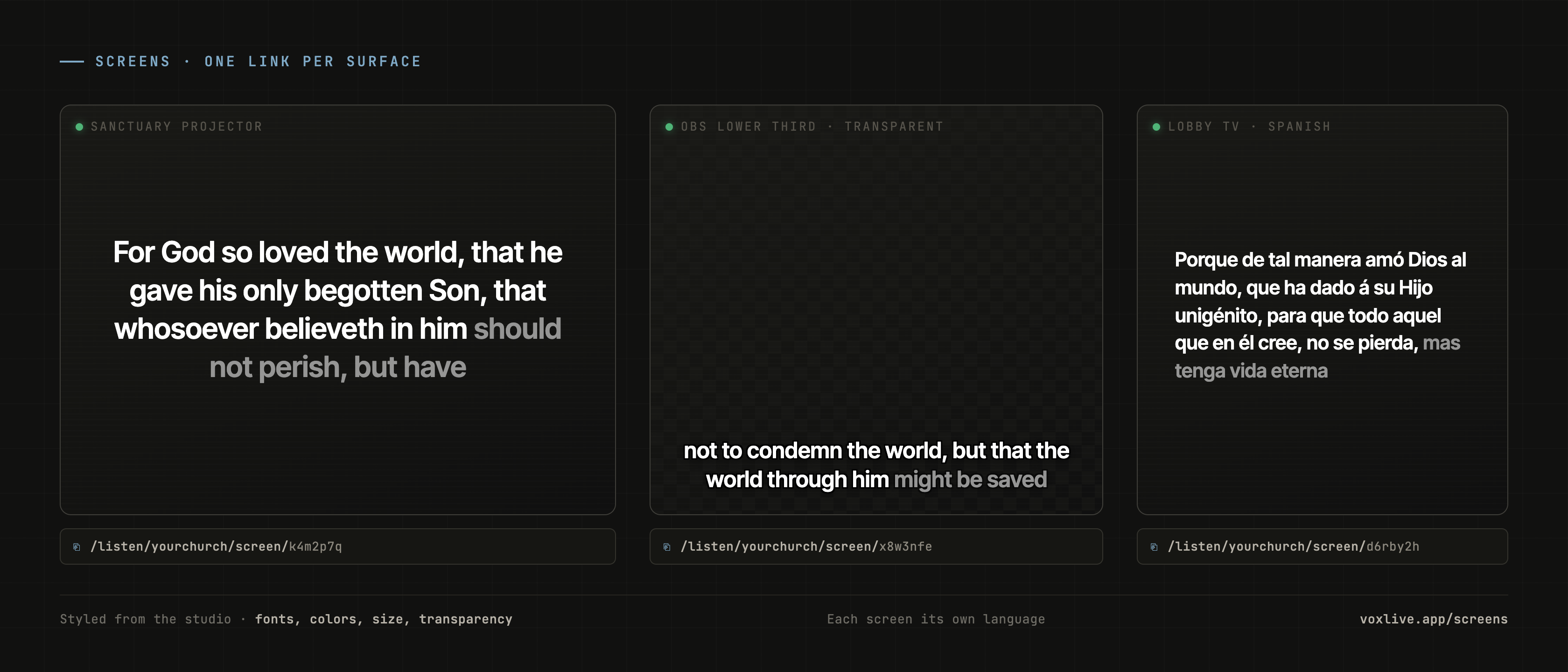
Most of what we write about VoxLive is about phones — every listener choosing their own language in their own ear. But every sanctuary also has surfaces that serve the whole room at once: the projector behind the stage, the confidence monitor, the TV in the lobby and the cry room, and the livestream where captions belong burned over the video as a lower third. Screens are how VoxLive feeds all of them. Each one is a live-caption display with its own link, its own language, and its own styling — and putting one anywhere takes about two minutes.
01 — The ideaOne link per surface.
In the studio, the Screens tab (voxlive.app/screens) lets you create as many screens as your building needs. Each screen gets a name (call it what it is — "Main projector," "Lobby TV," "OBS lower third"), a language, and a look. Saving it produces a public link of the form voxlive.app/listen/your-church/screen/… — a page that does exactly one thing: render your live captions, in that screen's language, in that screen's style, fullscreen.
Because the link is just a web page, it works anywhere a web page works — which is every screen in your building. Nobody signs in on the projector computer; the link carries everything it needs.
The Spanish lower third on your livestream, the English confidence monitor, and the Ukrainian TV in the cry room are three links from the same service.
02 — OBSThe lower third over your livestream.
- Create a screen, pick the language your stream's viewers need, and turn on the transparent background.
- Set it to a single line — one line sits at the bottom of the frame like a broadcast ticker. Give the text a shadow or outline so it stays readable over bright video.
- Copy the screen's link. In OBS, add a Browser source, paste the link, and set its size to your canvas (1920×1080 for most streams).
That's the whole job: your livestream now carries live translated captions burned into the picture, styled to match your stream, with nothing installed and no plugin. The same link in the same way drops into vMix or any encoder that renders a browser source.
03 — ProPresenter and projectorsCaptions where the room already looks.
The whole ProPresenter setup, recorded start to finish at our own church — three minutes, from creating the screen to captions live on the projector.
For a projector or confidence monitor, use a solid background instead of transparent — pick colors that match your room, size the text for the back row (the size control goes big), and allow a few lines so the room can catch up on a missed sentence. Add the link to ProPresenter as a web page element, or simply open it in a browser on the machine that drives the screen and press fullscreen. A TV with any kind of browser — a lobby stick, an old laptop behind the screen — works the same way.
Reference mode: Scripture on the big screen
Every screen has a second mode. Instead of the rolling captions, reference mode shows only the currently detected Bible verse — the reference and the verse text, projection-style. When the preacher lands on John 3:16, the screen shows John 3:16, in the screen's language, from a published Bible translation. One screen in captions mode for the room and one in reference mode behind the stage is a setup we like a lot.
04 — The stylingMake it look like your church, not like software.
- Colors: any background and text color — or no background at all (the transparent toggle) for overlays.
- Type: three typefaces, weight from light to black, sizes from confidence-monitor small to back-row huge, adjustable letter spacing and line height, and an ALL-CAPS switch for that broadcast lower-third look.
- Layout: one to six lines, top, center, or bottom of the screen, with an optional maximum width to keep text in a centered column.
- Legibility over video: a soft shadow or a hard outline behind the text — the difference between readable and invisible when the video behind it goes bright.
05 — RecipesThree setups to steal.
The livestream church: your stream is the front door, so give it a transparent single-line English screen as an OBS lower third — and if your congregation reads Spanish, a second stream scene with the Spanish screen. Pairs naturally with livestream mode, where your stream is also VoxLive's audio source.
The two-language sanctuary: main projector runs captions in the language most of the room reads; a second screen in reference mode shows the verses behind the preacher. Anyone who half-understands the preaching hears one language and reads the other — and starts putting the two together mid-service. Phones cover everyone who needs a third language — or a voice instead of text.
The lobby and cry room: one fullscreen screen each, big type, solid background. A parent walking a restless baby stays inside the sermon. It's a two-minute setup.
All of it rides the same broadcast you're already running — set up once on a weekday, and on service day it's just on. If you haven't run VoxLive yet, the free tier is enough to try every screen in this post during a real test, and the $5 First Sunday Pass unlocks the whole product for one full service.
Put one on a screen this week.
Every setup on this page fits inside the free tier's real-service test — no card, nothing installed. Your first screen takes about two minutes.